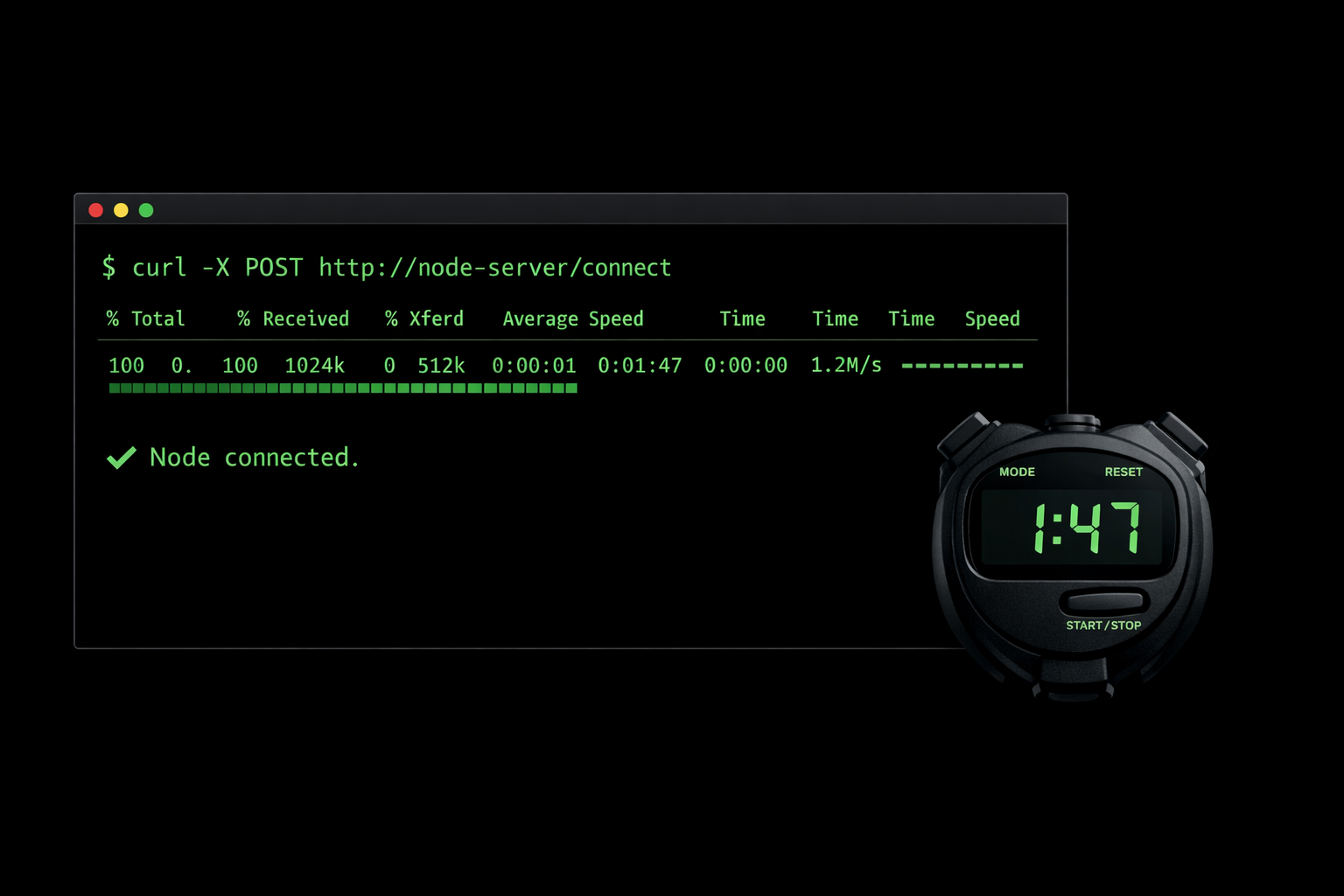
Deploying a ProxyPass node takes one command. On Linux with Docker, you paste a curl one-liner into the terminal. On Windows, you paste an install command into PowerShell. That is it.
What the Install Command Does
The install command contains everything the node needs: which group to join, which server to connect to, and the authentication key for registration. There is nothing to configure after installation. No config files to edit. No environment variables to set. No ports to open. No DNS entries to create.
On Linux, the script detects your system architecture automatically — amd64, arm64, or armv7 — pulls the correct Docker image, and starts the container. On Windows, it installs a native Windows service that starts automatically on boot.
Within about two minutes, the node appears in your dashboard as online. You can immediately route traffic through it, access devices in its network, or mount remote files.
Scenario: The Non-Technical Site Manager
You need a node installed at a warehouse. The site manager is not technical — they manage inventory, not IT infrastructure. You email them:
"Hi Maria, please open a terminal (on Linux) or PowerShell (on Windows) and paste this command:"
curl -sSL "https://proxypass.cloud/api/downloads/install.sh?key=abc123" | sudo bash"That's it. It will take about a minute. You'll see 'Node connected' when it's done."
Maria pastes the command. A minute later, the node appears in your dashboard. She did not need to know what Docker is, what a tunnel does, or how networking works. One copy-paste, done.
Fleet Deployment
For fleet deployments, the install command works identically across every machine. You can include it in provisioning scripts, golden images, or automated setup routines. Every node that runs the same command joins the same group with the same configuration. Zero-touch deployment at scale.
If you use protected groups, the install command includes a one-time key that expires after use. This means you can email the command to someone, they run it once, and the key is consumed. No risk of the command being reused to register unauthorized nodes.
We Are Right There With You
Two minutes from bare machine to connected node. No expertise required on the remote end. And if you run into anything unexpected during setup, we are right there. Every customer gets hands-on onboarding support — not a knowledge base link.